How to Run a 24/7 Steam Stream During Next Fest or a Sale
Steam Next Fest and sales bring a burst of visitors to your store page for a few days. Here's how to plan an always-on broadcast for that window: what to put in the loop, how to time live developer sessions, and how to keep it running all week without tying up a PC.
About 6 min read
On this page
To run a 24/7 Steam stream during Next Fest or a sale, build a clearly labeled loop of gameplay, trailer and developer commentary, keep your broadcasting account approved for the whole event window, and send the loop from something that won't sleep for a week. Add a few scheduled live developer sessions on top.
Festival and sale traffic is bursty: most visitors arrive within days, often from browsing rather than searching for your game. This guide assumes you know the basics of broadcasting on your Steam store page and focuses on planning the event week itself.
Key takeaways
- Next Fest runs for about a week, several times a year; sales have fixed windows too.
- Pair an always-on, clearly labeled loop with a few scheduled live sessions.
- Make sure broadcast permission covers every day of the event.
- Judge results against a pre-event wishlist baseline.
How Next Fest and sale windows shape the plan
Steam Next Fest is a weeklong event built around playable demos of unreleased games. Valve's documentation lists February, June and October editions, and a game can take part only once, which makes the week a one-shot opportunity. Seasonal sales and your own discounts also run on fixed dates.
Livestreaming during Next Fest is optional. Valve's Next Fest pages describe special livestream events that place your broadcast on the festival's schedule, with a limit on how many you can create and a featured spot that lasts only a short time at the start of each one. Limits can change, so read the scheduling page for your edition.
That structure suggests two layers: a few scheduled live sessions for the promoted slots, and a loop that keeps your page moving the rest of the week.
What to put in a festival loop
A festival visitor gives you seconds, so make every stretch of the loop work as a first impression:
- Demo gameplay in 10–20 minute segments, showing exactly what the demo contains so nobody is surprised after downloading.
- Your trailer every 20–30 minutes for people who arrive mid-loop.
- Short developer commentary clips recorded in advance, explaining a mechanic, a boss or a design choice.
- A wishlist reminder built into the video as a lower third or end card.
- Captions on talking segments, since many visitors browse muted.
Aim for 60–90 minutes before the loop repeats. Use music you own, usually your soundtrack. Valve's broadcasting FAQ asks that pre-recorded feeds carry a banner or title showing they aren't live, so do that, and never stage a fake "we're live" moment in a recording.
Scheduling live developer sessions around the loop
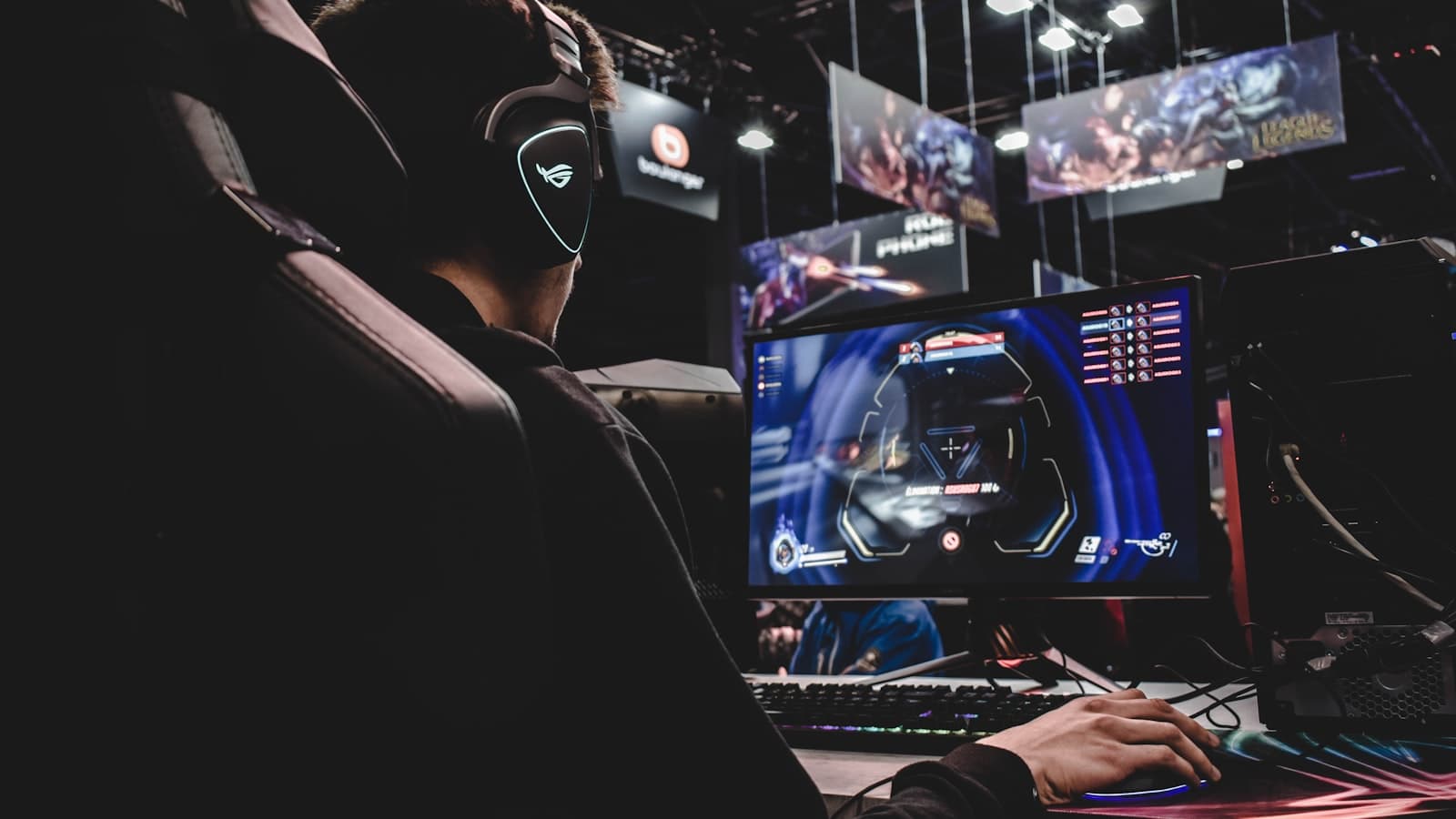
Live sessions are where you answer questions, and Valve's Next Fest tips encourage exactly that: enable broadcast chat, take questions and talk to viewers. Plan them deliberately:
- Cover your audience's evenings. For a global game, try one European evening session and one for the Americas.
- Start on the hour if you use Next Fest livestream events, since Valve's scheduling guidance is built around hourly slots.
- Stop the loop first when the live session uses the same broadcasting account, then restart it afterward. Two feeds on one token collide.
- Stay on for at least an hour, playing the demo and reading chat as you go.
For live demo gameplay, follow Valve's page on broadcasting demos: use an RTMP encoder such as OBS with the base game's app ID rather than the Steam client's built-in broadcast. Rehearse with a regular broadcast event before the fest begins.
Keeping permission and the stream alive for a week
The most common festival failure isn't content. It's a loop that quietly stops on day two. Check three things:
- Permission window. Approval granted through a Steamworks broadcast event follows that event's schedule; Valve's setup guide says a stream can continue up to 24 hours past the event's end at the time of writing. Make sure the event, or your store page's broadcast settings, covers every day you plan to stream.
- Token and visibility. The broadcast must be public and set to the base game. Don't regenerate the RTMP token mid-event unless you update the sender at the same moment.
- The sending machine. A studio PC running OBS for seven days will meet an OS update, a sleep timer or a power blip.
Before the event, run the full loop privately for several hours using our guide to testing a stream before going public, then set it to start before the festival opens.
Running your Next Fest broadcast week with StreamHouse
StreamHouse turns the loop into something nobody has to babysit. Upload your demo gameplay, trailer and commentary clips, build a playlist, and add Steam as a destination with the upload server and RTMP token from your broadcasting account. Use the scheduler to start it before the festival opens; it then runs in the cloud while every studio machine stays free for bug fixes.
Mid-week, add a clip showing a fix for the most-reported demo bug, or move your strongest segment to the front. Changes apply on the next video without taking the broadcast down, and the stream reconnects automatically after a hiccup. When a live session is due, stop the loop, go live, then start the playlist again.
Want the same loop on YouTube or Twitch? Add them as extra destinations, which don't use extra stream slots. Team roles let a marketer manage the playlist without billing access. See the Steam streaming page.
Frequently asked questions
Do I have to livestream during Steam Next Fest?
No. Valve describes livestreaming as optional, and a polished demo matters more. If you do stream, a few scheduled live sessions plus a clearly labeled replay loop give visitors something to watch without needing someone on camera all week.
Can a Next Fest broadcast be pre-recorded?
Valve's broadcasting FAQ allows pre-recorded feeds if a banner or title shows the stream isn't live. For Next Fest's scheduled livestream events, live sessions with developers answering chat fit the festival best. Check the current edition's documentation before scheduling.
How do I know if my Next Fest stream helped wishlists?
Compare daily wishlist additions in Steamworks during the fest with a baseline from the weeks before, alongside your broadcast log and viewer stats. Festival placement lifts everything at once, so treat any link between the stream and wishlists as directional rather than proof.
Can I use the same broadcast loop during a Steam sale?
Yes. Store-page broadcasting isn't limited to festivals. Update the on-screen messaging to mention the discount, keep broadcast permission active for the sale window, and remove sale references once it ends so the loop doesn't advertise an expired price.